How to migrate from CD to cloud without losing old scans
· Updated

If your imaging center has 5 or 10 years of history, you probably have thousands of scans on CDs, DVDs and external drives. Migrating to cloud feels overwhelming for fear of losing something or because of the sheer scope. This is a realistic 60-90 day plan that does not lose a single scan.
Before you start: what to migrate and what not
Not everything deserves migration. Set a clear policy:
- Migrate everything from the last 3 years: it is the most queried and re-sent.
- Selectively migrate 4-7 years old: only if the patient is still active.
- Keep older than 7 years archived: physical backup or external drive, no migration.
This trims the workload by 60-70% without losing relevant scans.
Step 1: inventory
Before touching a single CD, take inventory. Track on a spreadsheet:
- How many CDs and DVDs you physically hold.
- How many external drives and what capacity.
- What is on your current server or NAS.
- Approximate scan count.
- Estimated total size in GB.
This lets you size the cloud plan correctly and schedule migration time.
Step 2: pick a cloud platform
Minimum criteria:
- Native DICOM support (not just loose files).
- Accepts bulk folder or ZIP upload.
- Preserves DICOM metadata (patient, date, modality).
- Organizes by patient and date.
- Plan that fits your volume.
- Complies with local regulation (HIPAA, GDPR, etc).
Step 3: prepare an upload workstation
Dedicate a computer with:
- USB external CD or DVD reader (internal ones are almost extinct).
- Stable internet with at least 50 Mbps upload.
- External drive or NAS for staging.
- Copy or sync software configured.
Step 4: batch migration process
Work in weekly batches. Typical plan:
- Load 20-30 CDs to staging per session.
- Verify each DICOM opens correctly.
- Create one folder per patient with name and DOB.
- Upload to cloud in 50-100 GB chunks.
- Mark physical CD as "migrated" before archiving.
Expect 5 to 8 hours of work per 100 scans migrated.
Step 5: cross-verification
After each batch, verify a sample:
- Open 5 random scans from cloud and compare with original CD.
- Confirm slice count matches.
- Confirm metadata (name, date) is correct.
- If all OK, mark batch as verified.
Step 6: physical retention policy
Even after migrating, do not toss CDs on day one. Keep them at least 12 months as backup. After that, if all worked well, you can:
- Donate CDs to certified e-waste recycling.
- Keep only CDs of patients with open legal cases.
- Keep one offline backup external drive.
Common mistakes to avoid
- Trying to migrate everything in one weekend: impossible. Work in weekly batches.
- Not verifying after upload: 1 in 50 scans will have an issue.
- Not organizing by patient: cloud without structure is worse than CDs.
- Tossing CDs too early: keep 12 months minimum.
- Not communicating to patients: let them know their scans are now online.
How CBCTHub helps with migration
CBCTHub accepts bulk upload by folder or ZIP. Each scan is automatically organized by patient and date using DICOM metadata. You do not need to build manual structures. And the plan scales with your volume, no surprises. If you want to see how it looks, you can create a free account and upload a first test batch.
Wrap up
Migrating 5 years of CDs is not magic, it is work. But with a weekly batch plan it gets done in 60-90 days and frees your center from tons of plastic, manual searches and resends. The time investment pays back in 3-6 months through productivity gains.
Try CBCTHub for free
Upload, view, and share DICOM scans in the cloud. Nothing to install.
Create free accountRelated articles
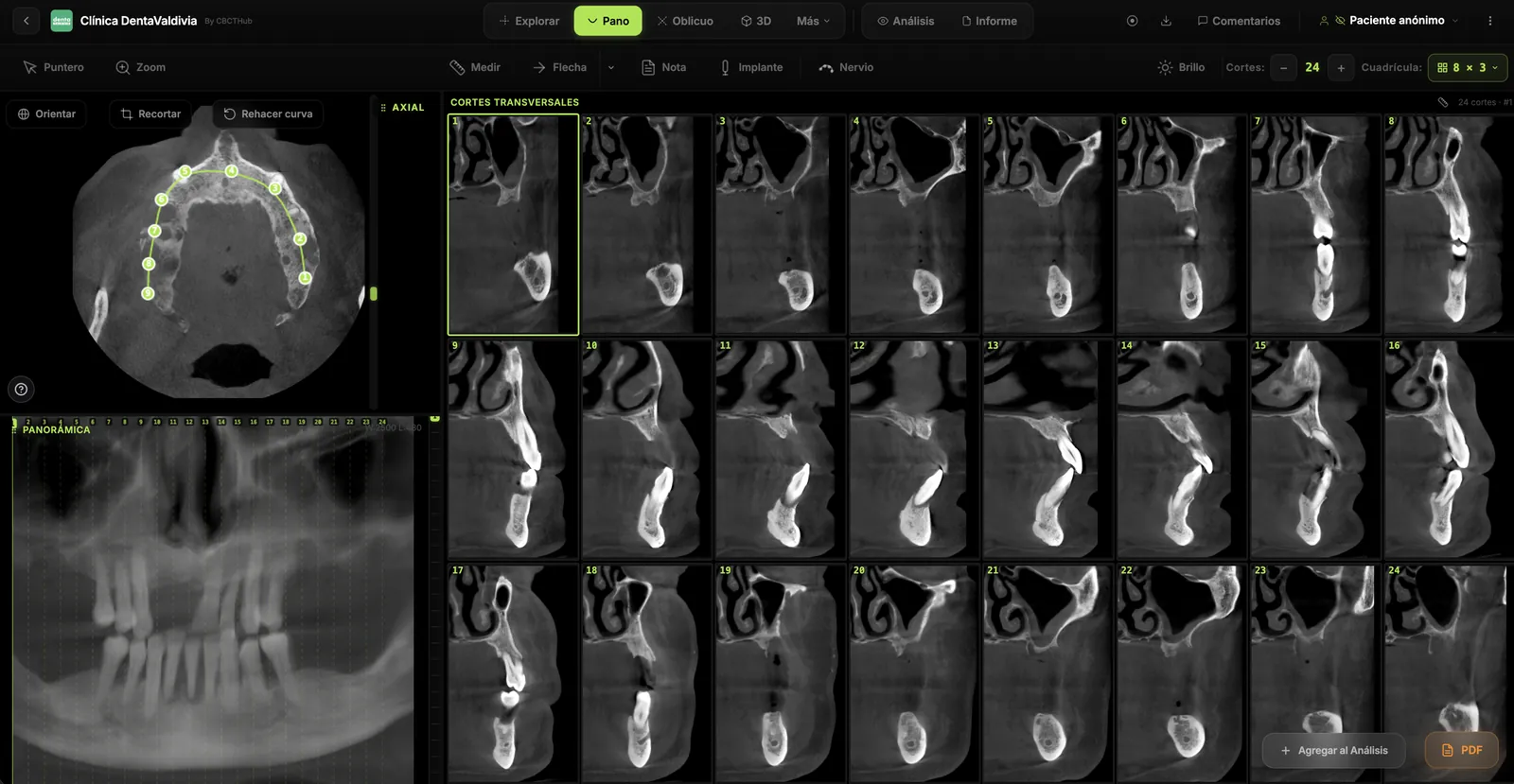
Browser DICOM viewer vs desktop: what works for CBCT in clinic
Open CBCT in the browser or install a desktop viewer? A clinical decision matrix: MPR performance, offline use, Mac/Windows mix, sharing without CDs, and when native software still wins.
How to open a CBCT without installing software: a practical online-viewer guide
You got a CD, ZIP, or link with a CBCT and no manufacturer viewer. How to open the DICOM in the browser, measure in mm, and what to do when it fails.
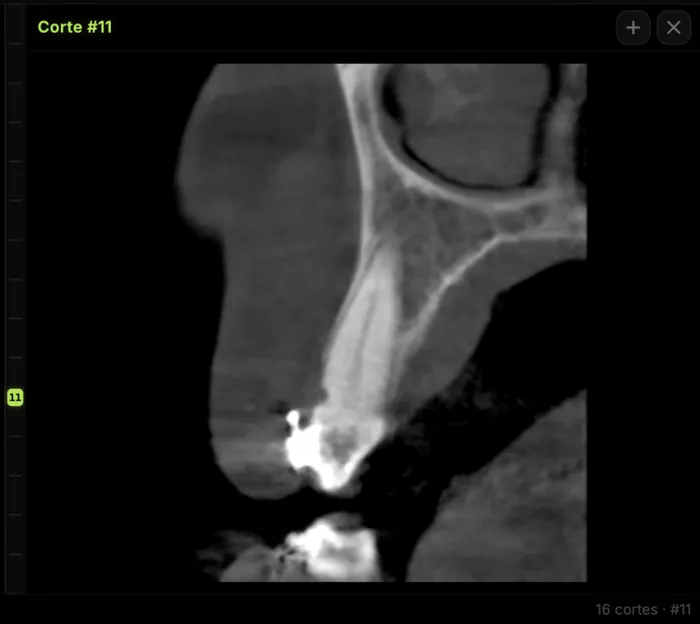
Mandibular canal and inferior alveolar nerve on CBCT: anatomy, variants, and pre-surgical measurement
Locate the mandibular canal and IAN on CBCT: mental loop, bifid/retromolar canal, measurement checklist, and when to escalate from panoramic (ALADA).