AI segmentation · Beta
Turn the CBCT into a 3D model, with every structure separated.
The AI separates bones, teeth, canal, sinuses, airway and TMJ. Use it to explain the case to your patient, plan, and export STL for printing.
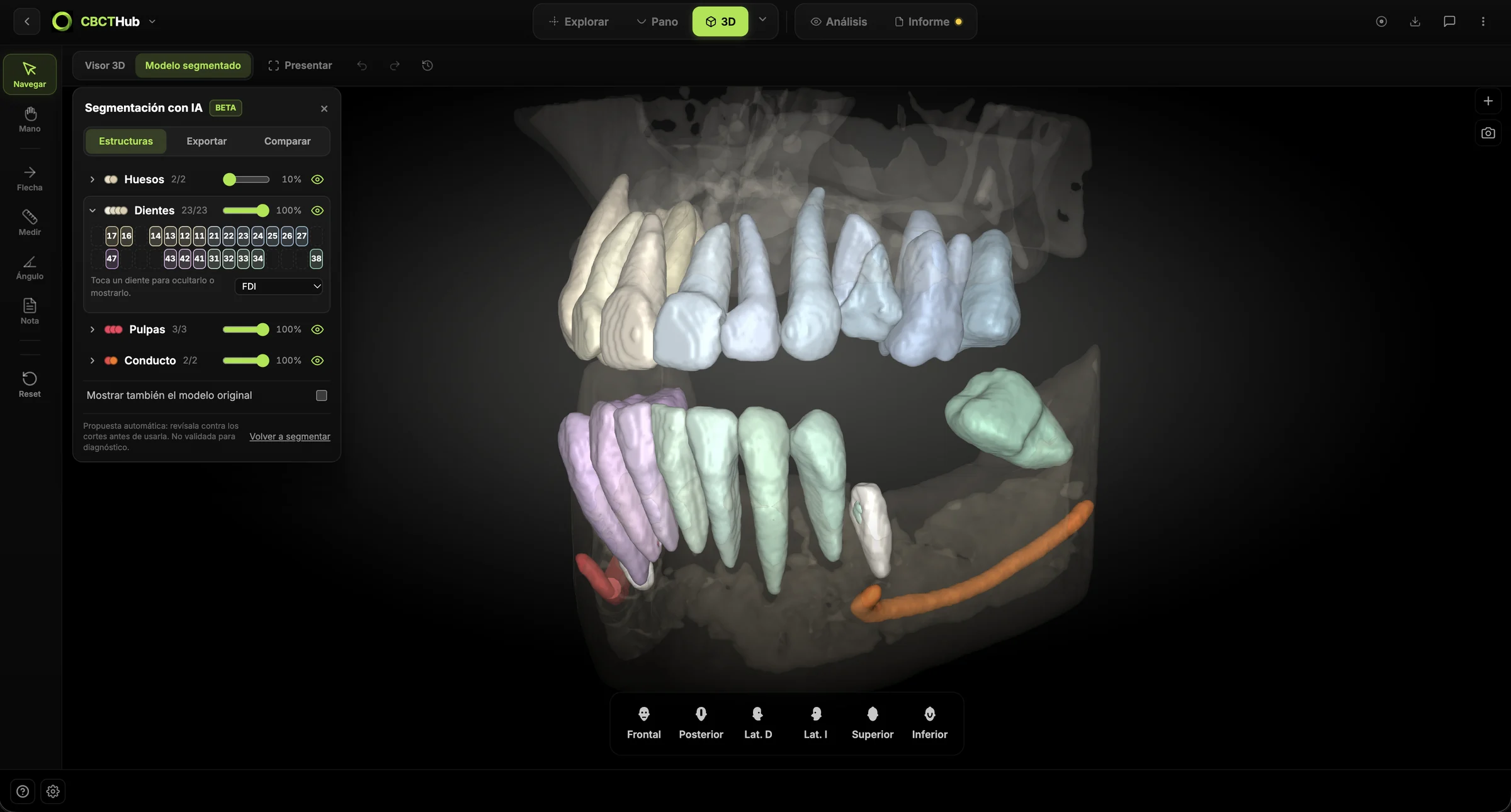
What it separates
Maxilla and mandible
Each bone on its own, with its volume.
Every tooth, numbered
With its root and number, in FDI or universal.
Mandibular canal
Each side separately, with its length.
Sinuses and airway
Volume of each sinus and minimum airway area.
TMJ
Condyles, fossae and the measured joint space.
Benefits
What you get
- +A 3D model with each structure in its own color.
- +Every tooth with its number and root.
- +The canal on each side, with its length.
- +Bone, TMJ, sinus and airway measurements.
- +STL and NIfTI export, and plates for the report.
Why it helps
A model with each structure in its own color makes sense without knowing how to read a CBCT. You show the patient what you see in the slices.
1.0Teeth
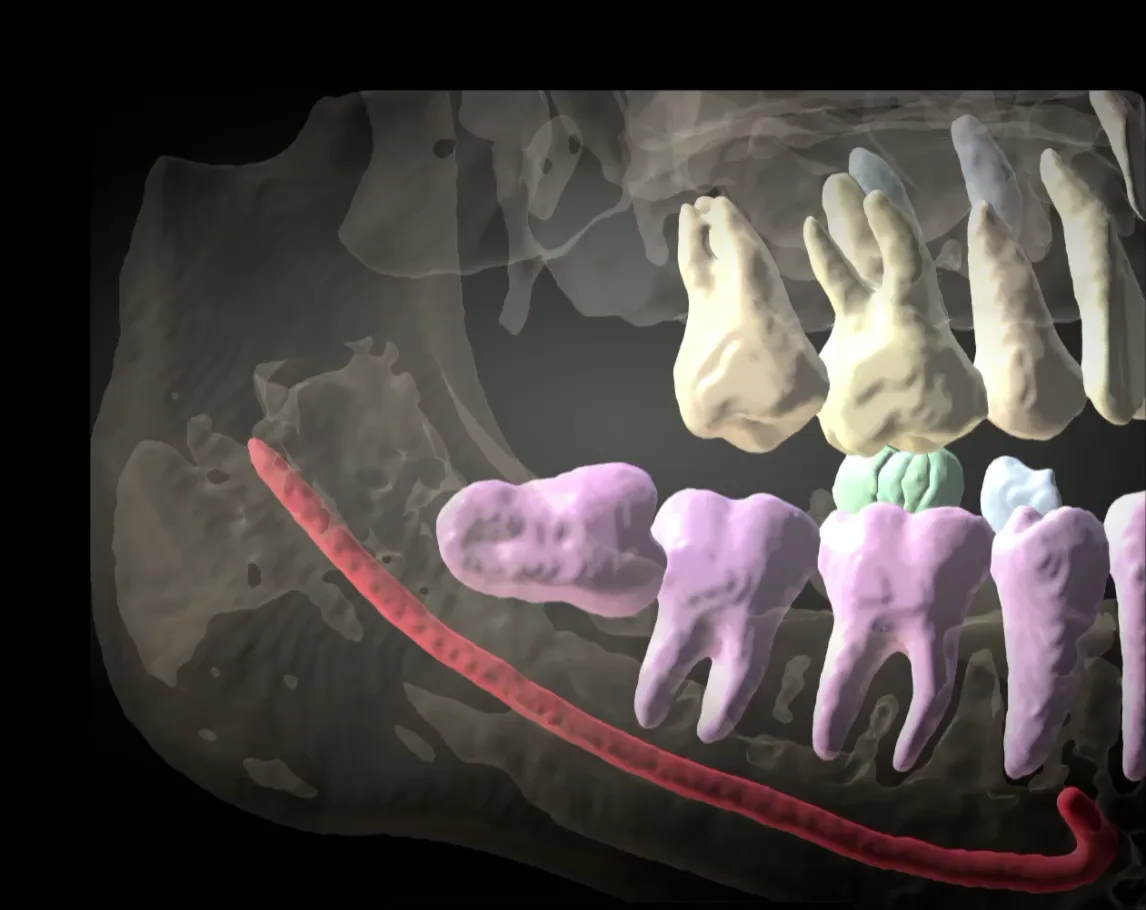
Every tooth on its own, with root and number
The AI separates each tooth with its root and labels it in the notation you use: FDI, dotted FDI or universal. Missing teeth are marked on the tooth chart, and each tooth can be hidden, recolored or exported as STL.
- FDI and universal
- Tooth chart
- Full roots
- STL per tooth
2.0TMJ
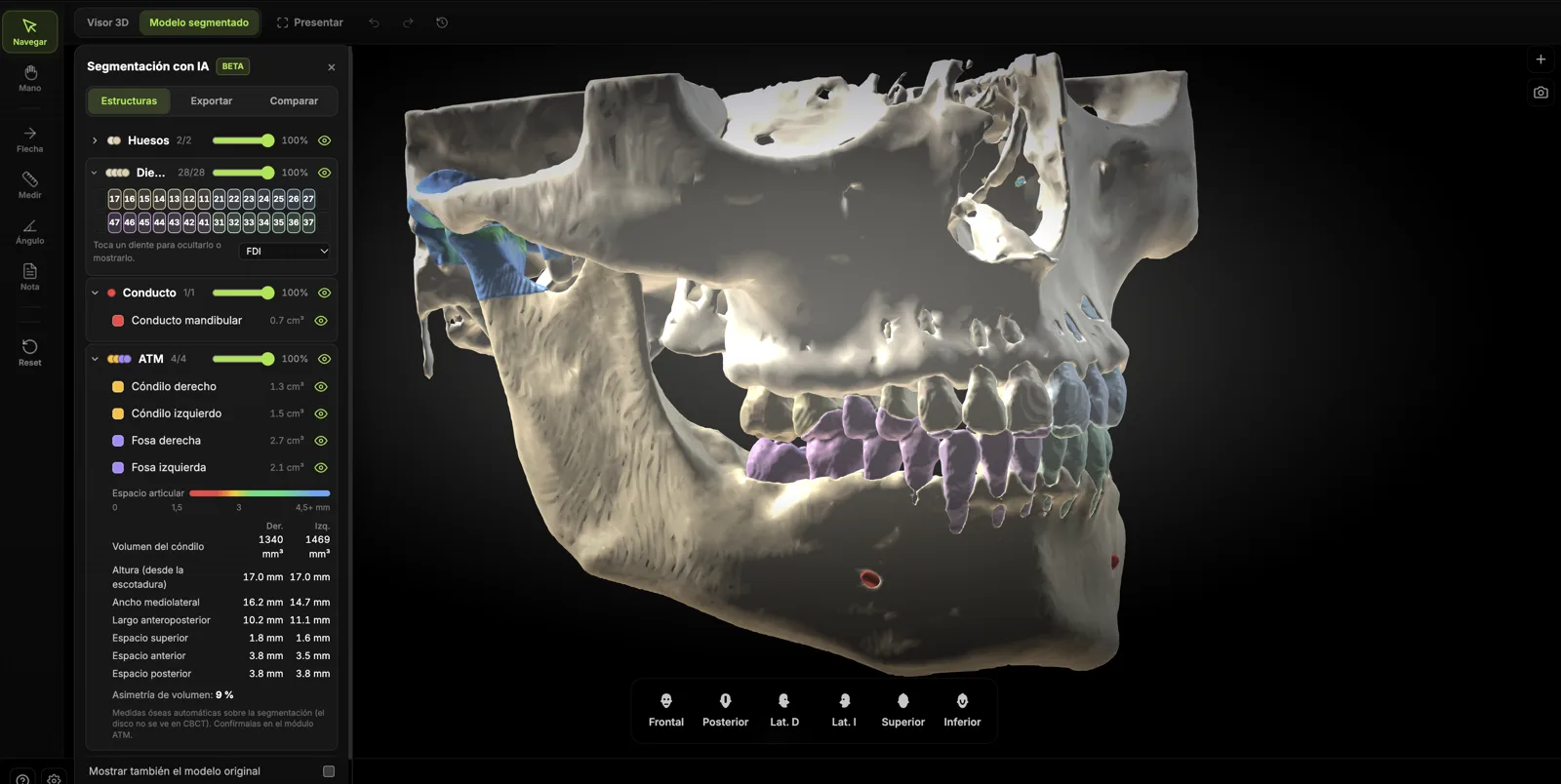
Joint space measured on both sides
It separates condyles and fossae, colors the joint space by distance and gives you the superior, anterior and posterior space on each side, the condyle volume and the asymmetry between them.
- Condyles and fossae
- Joint space map
- Condyle volume
- Asymmetry
3.0Report and export
The report plates build themselves
“Create report plates” produces four sheets: the model, the arches with the tooth chart, the TMJs and the airway. You can also export to STL, or to NIfTI with the color table to open it in 3D Slicer.
- 4 plates
- STL
- NIfTI
- 3D Slicer
What it is for
Implants
Bone height and width where a tooth is missing, with the nerve in view.
Third molars
The distance from the root to the canal, and whether they touch.
Surgery
The bone without the teeth on top, and the sinuses in view.
Orthodontics and aligners
Teeth with their roots, one by one as STL.
3D printing
Bone and teeth as STL for models, guides or the lab.
TMJ
Superior, anterior and posterior joint space, and the volume of each condyle.
Sinuses and airway
Volume of each sinus and minimum airway area.
Before and after
Compare two CBCTs of the same patient and see where the bone changed (beta).
Research
Export to NIfTI with the color table to open it in 3D Slicer.
Frequently asked questions
Does it replace my diagnosis?+
No. It is an automatic proposal to check against the slices; it is not validated for diagnosis. The panel says so.
How long does it take?+
About 2 minutes per exam. You can keep working in the viewer meanwhile.
Do I have to segment every time I open the exam?+
No. You segment once and it is saved with the exam; reopening it loads in seconds.
Where is it processed?+
On a GPU server that only receives the exam to segment it and returns the result to your account. Exams are not used to train models.
Does it work with any scanner?+
With standard DICOM series from Planmeca, Carestream, Sirona, Vatech, NewTom, Morita, i-CAT and others. To see the TMJs and the airway, the field of view must include them.
What if I run out of monthly quota?+
Segmentations already done remain visible. The quota renews on the 1st of each month.
Try it on one of your own CBCTs.
Included in the Max (100 segmentations a month) and Ultra (300 a month) plans.