Upload an exam
Uploading an exam is the most frequent day-to-day action. CBCTHub accepts DICOM files directly from the scanner — no conversion needed, no intermediate software.
Step by step
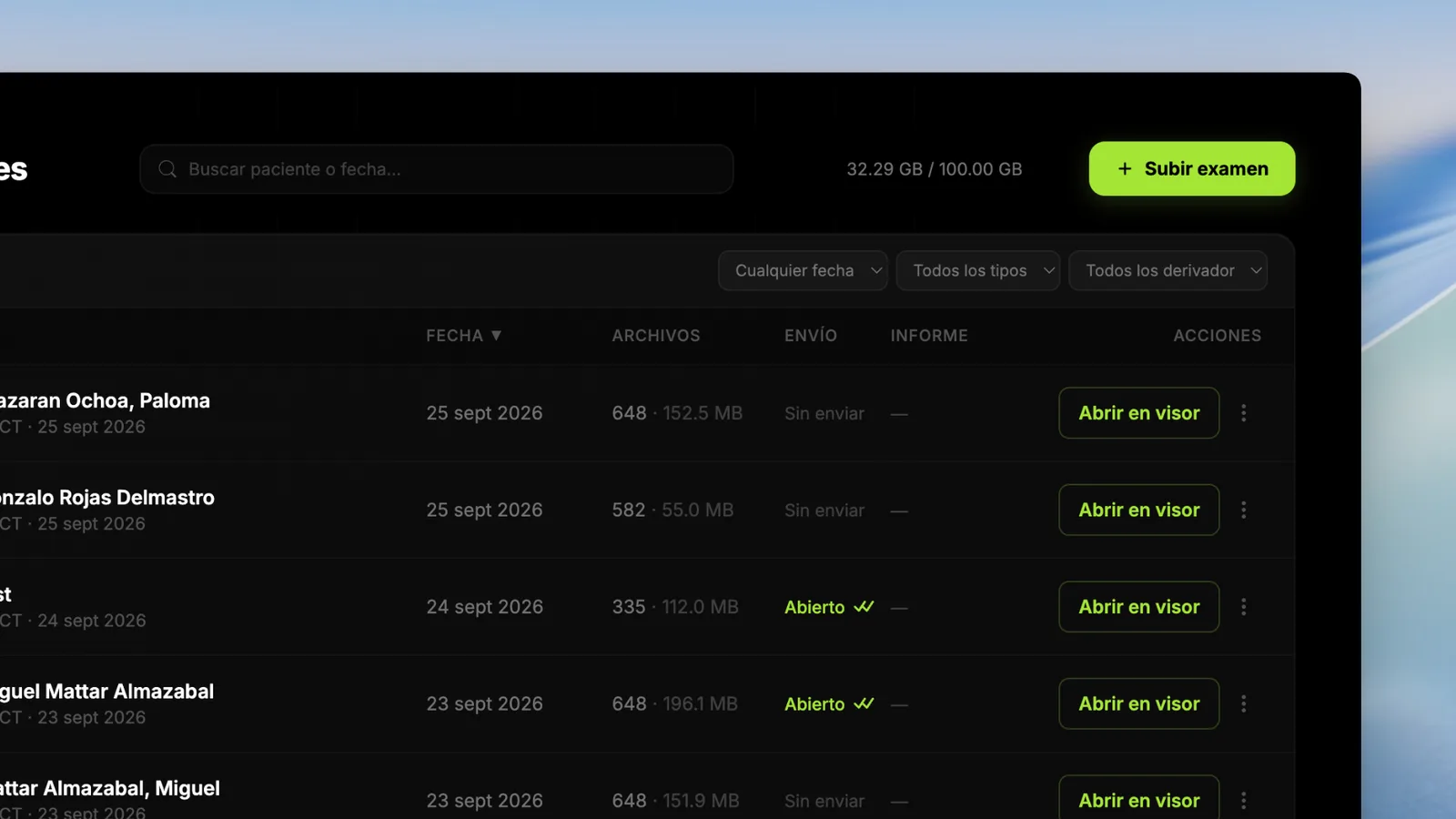
- 1In My exams, click the green Upload exam button at the top right.
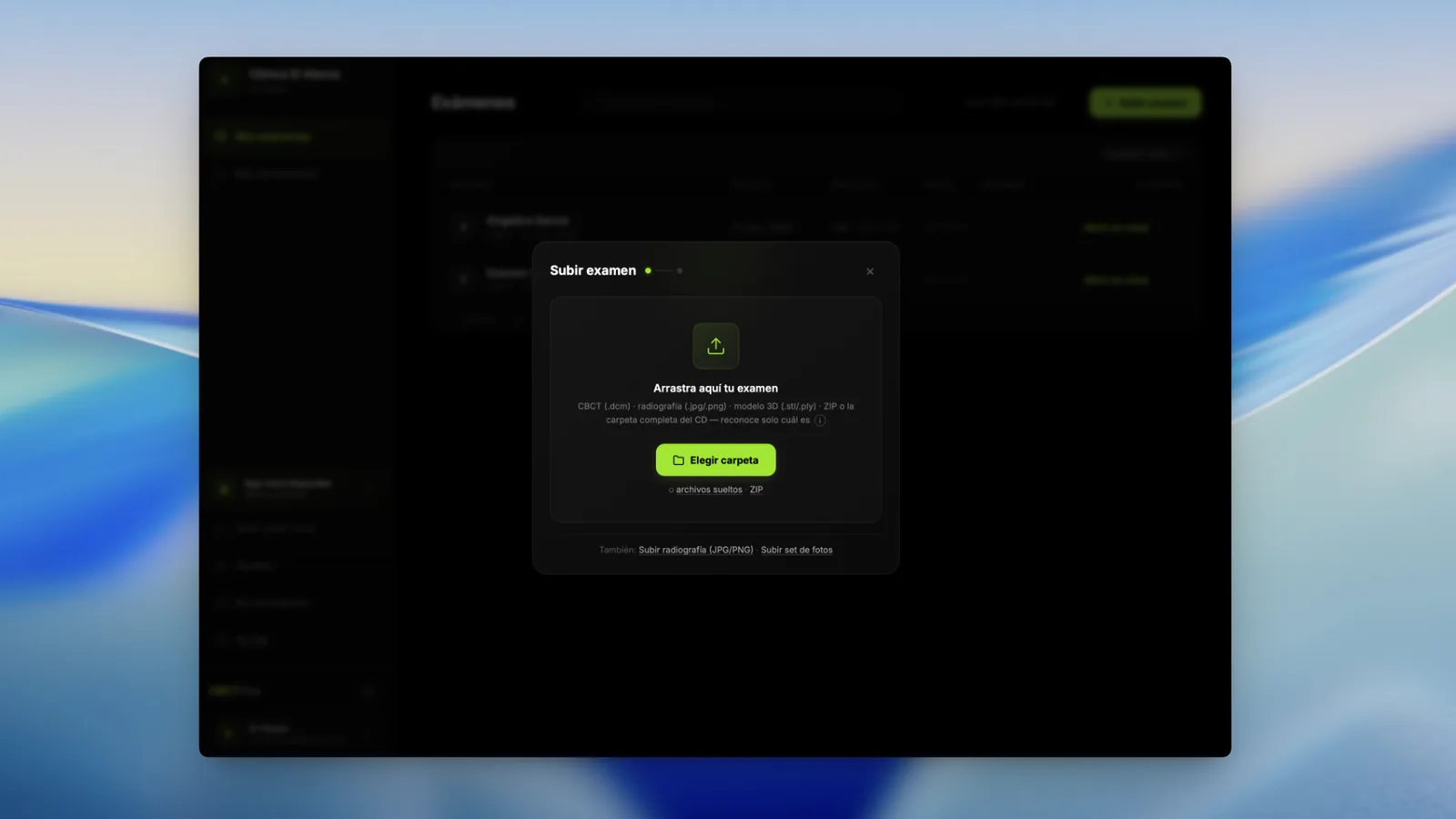
- 2Drag the study folder (the one your scanner produces, with all the
.dcmfiles inside) onto the modal. You can also click and select it manually. Accepts .zip if you prefer to compress first. - 3Fill in patient data: name, ID, date of birth, reason. If the DICOM has this in metadata, it autofills — review before continuing.
- 4Optional: pick a referrer from the list. If you haven't saved them yet, you can add them from the same modal without losing the upload.
- 5Click Upload. The browser processes the study locally (nothing raw is sent), builds the thumbnail, and uploads encrypted files to the cloud.
Compatible scanners
CBCTHub works with any scanner that exports standard DICOM. We've verified operation with:
Carestream, Planmeca, Vatech, Sirona, Morita, NewTom, Instrumentarium, PreXion, Dentsply, KaVo and MyRay.
For studies with more than one series (typical in TMJ: closed, open, lateralities), upload the first series as the main exam. Then, in the exam detail modal, there's an Add take button to add the remaining series.
All takes are grouped under the same patient and can be switched inside the viewer with the side selector.
Common issues
“No space available”. You hit your plan's storage limit. Click the X GB / Y GB indicator in the My exams header to see which exams take most space and either delete some or upgrade.
Upload interrupted by connection. Go back to the modal and select the folder again — already-uploaded files are automatically skipped.
“Main series not detected”. The study probably has multiple series and CBCTHub couldn't pick the CBCT one. Make sure the folder only contains the volumetric series (the heaviest, typically 200-700 MB).