How to Export DICOM Files from Carestream CBCT Scanners
· Updated
Why Export DICOM from Carestream?
Carestream is one of the most popular CBCT scanner brands worldwide, with models like the CS 8100 3D, CS 9300, and CS 9600 widely used in dental clinics and imaging centers. While Carestream provides its own imaging software, there are many situations where you need to export the DICOM files — sharing with specialists, uploading to cloud platforms, or viewing on devices where Carestream software isn't installed.
Exporting from CS Imaging Software
Carestream's imaging software (CS Imaging, CS 3D Imaging, or Carestream Dental Imaging Suite) stores scans in a proprietary database. To export as DICOM:
- Step 1: Open the patient's scan in Carestream's imaging software
- Step 2: Go to File → Export or use the Export icon in the toolbar
- Step 3: Select "DICOM" as the export format (not JPEG or proprietary)
- Step 4: Choose the destination folder — a USB drive, network folder, or local directory
- Step 5: Click Export and wait for the process to complete
The export will create a folder containing multiple .dcm files — one per slice — along with a DICOMDIR index file.
Export Settings to Watch For
When exporting, pay attention to these settings:
- Anonymization: Some versions offer the option to anonymize patient data on export. Only use this if you're sharing for teaching or research.
- Compression: Choose uncompressed DICOM for maximum compatibility. Compressed formats may not be readable by all viewers.
- Volume vs. individual slices: Some export options create a single multi-frame DICOM file, while others create individual slice files. Individual slices are more universally compatible.
Common Export Issues
Several problems can occur during Carestream DICOM export:
- Missing slices: If the export is interrupted, you may get an incomplete dataset. Always verify the file count matches the expected number of slices.
- Large file sizes: A full CBCT export can be 300-800 MB. Ensure your destination has enough space.
- Permission issues: In networked environments, you may need admin access to export patient data.
Viewing Exported Carestream Files
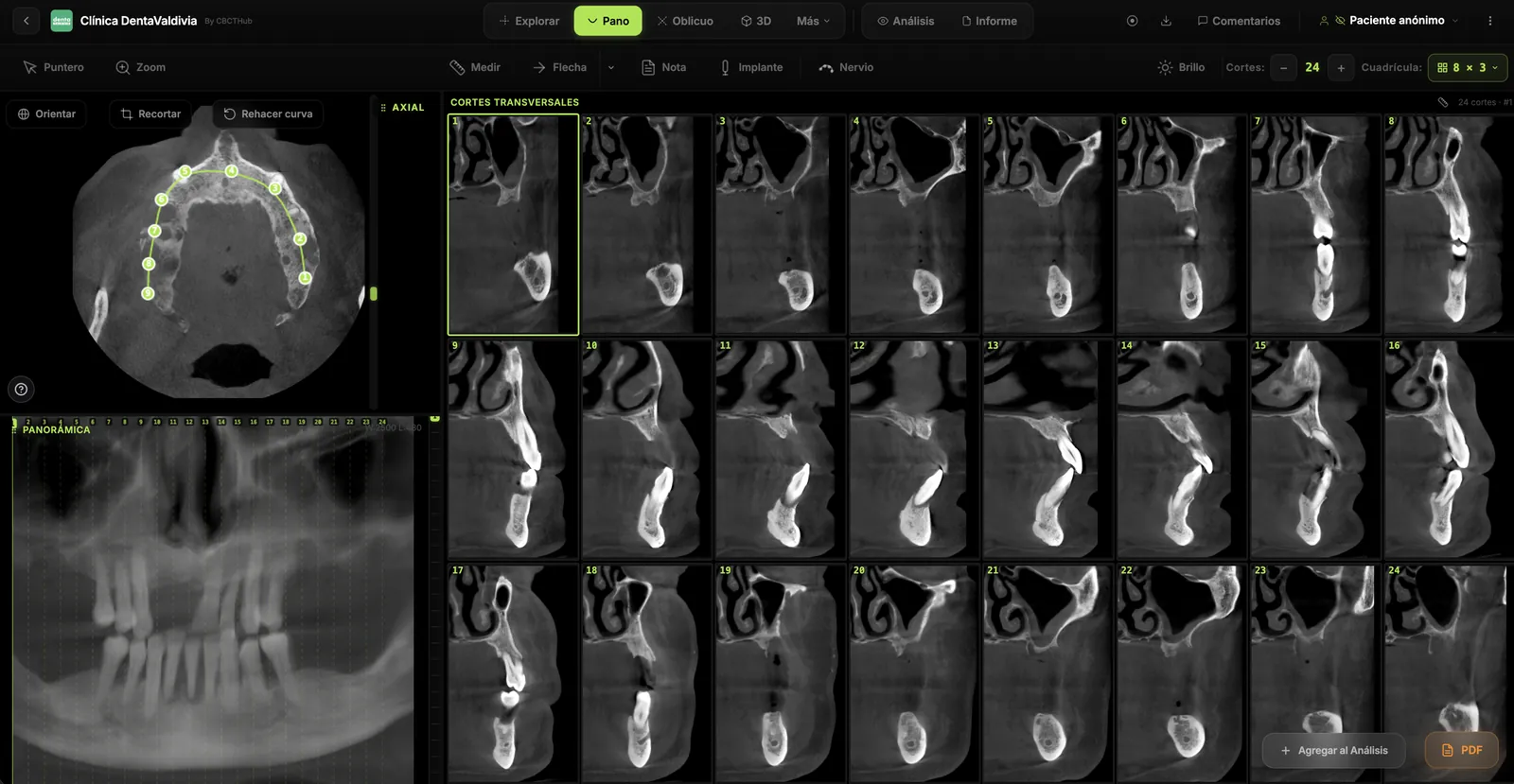
Once exported, DICOM files from Carestream scanners are fully compatible with standard DICOM viewers. You can drag the exported folder into an online viewer like CBCTHub — it will automatically detect the DICOM files, reconstruct the volume, and present the full MPR, panoramic, and cross-sectional views. No Carestream software needed on the viewing end.
Uploading to the Cloud
For permanent access, you can upload the exported DICOM folder to a cloud DICOM platform. This allows you to access the scan from any device, share it with colleagues via link, and keep a secure backup separate from your local Carestream server.
Try CBCTHub for free
Upload, view, and share DICOM scans in the cloud. Nothing to install.
Create free accountRelated articles
Endodontic CBCT: AAE/AAOMR 2025 indications
When to justify CBCT in endodontics per the AAE/AAOMR 2025 Position Statement: selective use, limited FOV, ALADAIP, and a practical reading checklist.
Dental CBCT in the cloud: day-to-day storage and sharing in clinic
What “CBCT in the cloud” means in clinic: store the original DICOM, access it from multiple chairs, and share with access control — without mistaking it for a full PACS or a WhatsApp ZIP.
Browser DICOM viewer vs desktop: what works for CBCT in clinic
Open CBCT in the browser or install a desktop viewer? A clinical decision matrix: MPR performance, offline use, Mac/Windows mix, sharing without CDs, and when native software still wins.