Working with Vatech CBCT Scanners: DICOM Export and Viewing Tips
· Updated
Vatech CBCT Scanners
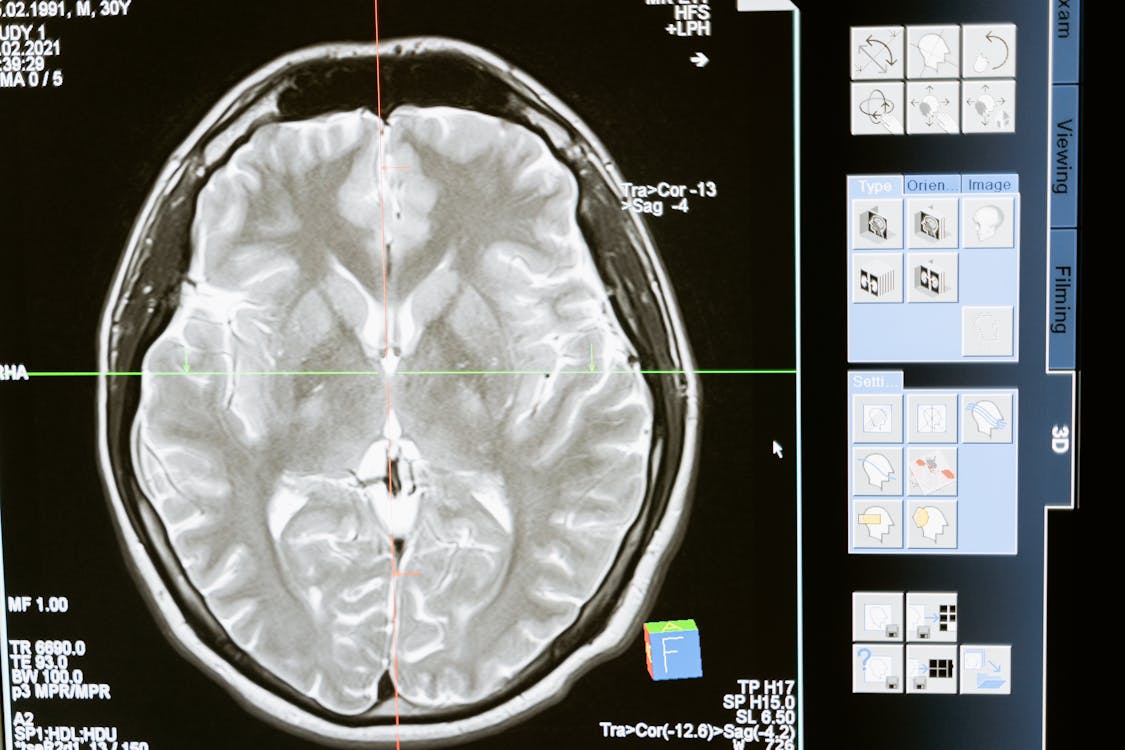
Vatech is a South Korean manufacturer known for affordable, high-quality CBCT scanners popular worldwide. Their product line includes the PaX-i3D, PaX-i3D Green, Green CT, PHT-6500, and the compact PaX-i3D Smart. All Vatech scanners use the EzDent-i or Ez3D-i software for image management.
Exporting DICOM from EzDent-i / Ez3D-i
Vatech's software provides straightforward DICOM export capabilities:
- Step 1: Open the patient's 3D scan in EzDent-i or Ez3D-i
- Step 2: Navigate to File → Export → DICOM Export (or the CD/Export button in the toolbar)
- Step 3: Select the output folder — USB drive or network location
- Step 4: Choose export settings: full volume, slice thickness, and whether to include DICOMDIR
- Step 5: Click Export and wait for the process to finish
Export Settings for Vatech Scanners
Vatech's export dialog offers several options worth understanding:
- Slice thickness: Export at the original voxel size (typically 0.2mm or 0.3mm) for maximum quality, or use a larger slice thickness for smaller file sizes
- DICOMDIR: Include this if the recipient might use a CD-based viewer. Most modern viewers don't need it but it doesn't hurt to include.
- Viewer included: Vatech can burn a basic viewer onto the export media. Skip this if you're uploading to a cloud platform — you won't need it.
Vatech-Specific Considerations
When working with Vatech DICOM exports:
- Voxel size variations: Different Vatech models have different maximum resolutions. The PaX-i3D typically offers 0.2mm voxels, while some older models may be 0.3mm or 0.4mm.
- Field of view: Vatech offers multiple FOV sizes. Export only the clinically relevant FOV to keep file sizes manageable.
- Grayscale values: Vatech scanners use standard Hounsfield-like units in their DICOM output, ensuring proper window/level behavior in third-party viewers.
- Patient orientation: Verify that exported files maintain correct patient orientation tags. Some older Vatech firmware versions had orientation inconsistencies that could affect display in other viewers.
Uploading Vatech Scans to Cloud Viewers
Once exported, Vatech DICOM files work in any standard DICOM viewer. You can:
- Drag the exported folder directly into a browser-based viewer
- Upload to cloud storage for permanent access and sharing
- Generate panoramic reconstructions and cross-sections even without Vatech's software
- Share with referring dentists via secure link — they don't need Vatech software to view the scan
This is especially valuable for imaging centers with Vatech equipment that serve clinics using different scanner brands — everyone can view scans in a single, brand-neutral online platform.
Try CBCTHub for free
Upload, view, and share DICOM scans in the cloud. Nothing to install.
Create free accountRelated articles
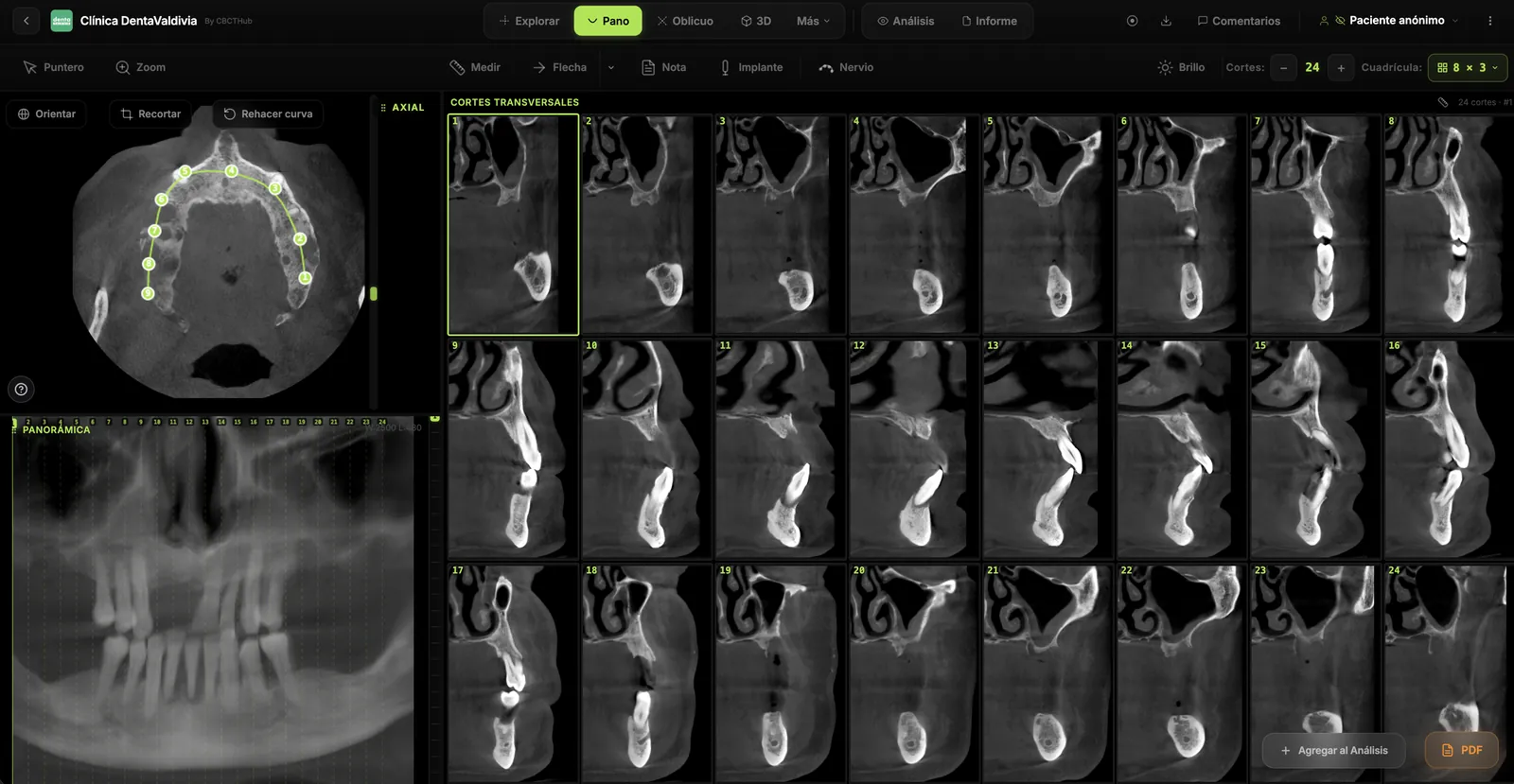
Dental CBCT in the cloud: day-to-day storage and sharing in clinic
What “CBCT in the cloud” means in clinic: store the original DICOM, access it from multiple chairs, and share with access control — without mistaking it for a full PACS or a WhatsApp ZIP.
Browser DICOM viewer vs desktop: what works for CBCT in clinic
Open CBCT in the browser or install a desktop viewer? A clinical decision matrix: MPR performance, offline use, Mac/Windows mix, sharing without CDs, and when native software still wins.
Dental DICOM software: a checklist for choosing a CBCT viewer
Before adopting a dental DICOM or CBCT viewer in the clinic: checklist for interoperability, MPR, mm measurements, share without CD, privacy, and TCO.