Exporting and Viewing DICOM from Planmeca Romexis

· Updated

Planmeca and the Romexis Ecosystem
Planmeca is a leading Finnish manufacturer of CBCT scanners, known for models like the ProMax 3D, ProMax 3D Mid, and ProMax 3D Max. All Planmeca CBCT data is managed through Romexis, their comprehensive imaging software. While Romexis is powerful, there are times when you need DICOM files outside the Romexis environment.
Why Export from Romexis?
Common reasons to export DICOM files from Planmeca Romexis:
- Sharing scans with referring dentists who don't use Planmeca equipment
- Uploading to cloud-based DICOM viewers for remote access
- Sending to specialists (oral surgeons, periodontists) who use different software
- Creating backups independent of the Romexis database
- Importing into implant planning software from other manufacturers
Step-by-Step DICOM Export from Romexis
- Step 1: Open Romexis and navigate to the patient's 3D volume
- Step 2: Right-click the volume or go to File → Export
- Step 3: Select "Export as DICOM" from the export options
- Step 4: Choose the export location (USB drive, network share, or local folder)
- Step 5: Configure export settings — select full volume, choose slice thickness, and decide on compression
- Step 6: Click Export and wait for completion
Romexis Export Options
Romexis offers several export configurations:
- Slice thickness: You can export at the original acquisition resolution or choose a different slice thickness. Original resolution preserves maximum detail.
- FOV selection: Export the full volume or select a region of interest for a smaller file size.
- DICOM compliance: Ensure "Standard DICOM" is selected for maximum compatibility with third-party viewers.
Known Considerations
A few things to be aware of when working with Planmeca DICOM exports:
- File naming: Romexis may name DICOM files with patient information in the filename. Be mindful of privacy when sharing.
- Proprietary tags: Some Planmeca-specific DICOM tags may be included that other viewers don't recognize. This doesn't affect image display.
- Large volumes: High-resolution ProMax 3D Max scans can produce very large datasets. Consider exporting at clinical resolution rather than maximum resolution for sharing.
Viewing Planmeca Exports in Online Viewers
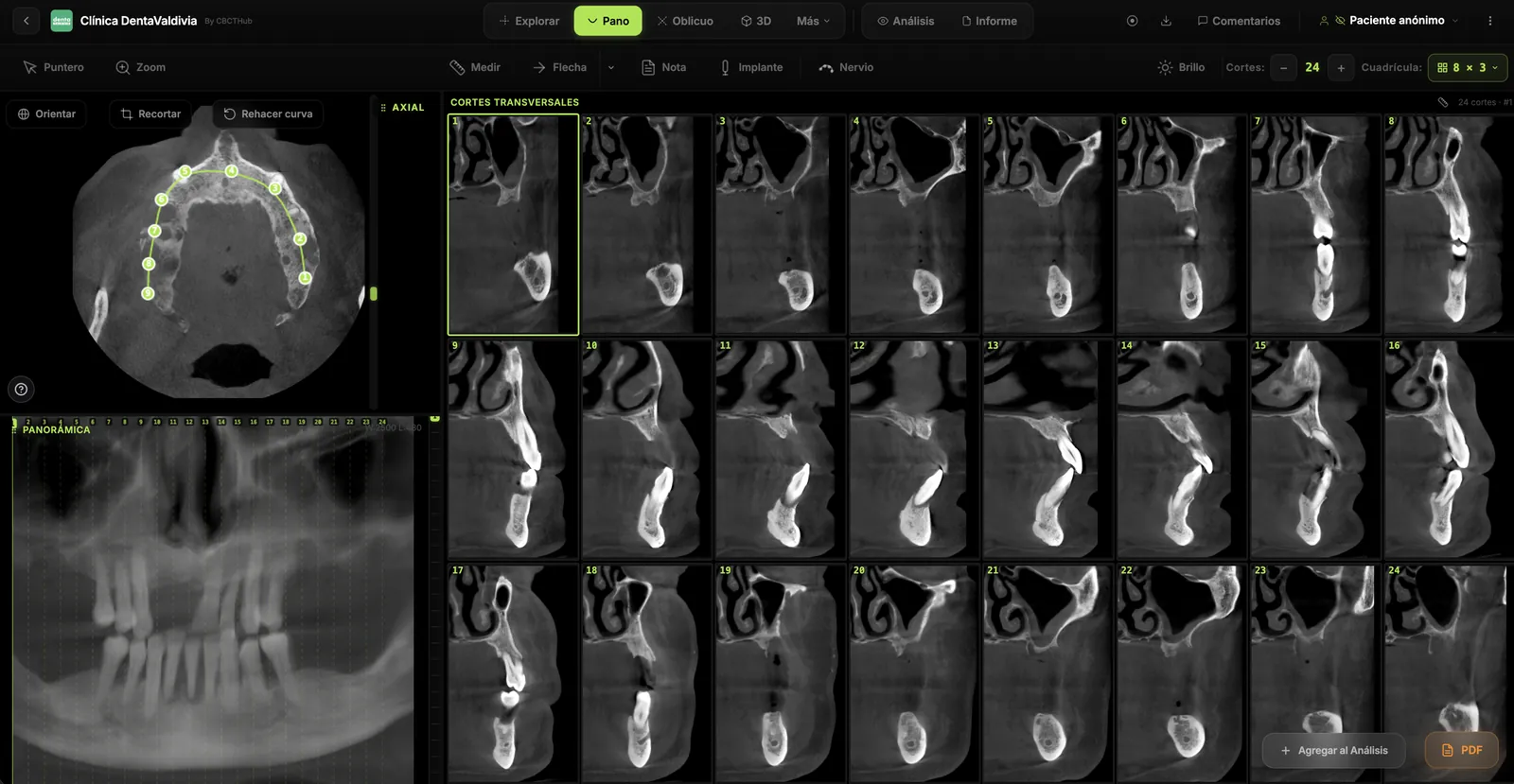
DICOM files exported from Planmeca Romexis are fully standard-compliant and work in any DICOM viewer. You can drag the exported folder into a browser-based viewer to access MPR views, panoramic reconstruction, measurements, and sharing — all without needing a Romexis license on the viewing computer.
Try CBCTHub for free
Upload, view, and share DICOM scans in the cloud. Nothing to install.
Create free accountRelated articles
Dental CBCT in the cloud: day-to-day storage and sharing in clinic
What “CBCT in the cloud” means in clinic: store the original DICOM, access it from multiple chairs, and share with access control — without mistaking it for a full PACS or a WhatsApp ZIP.
Browser DICOM viewer vs desktop: what works for CBCT in clinic
Open CBCT in the browser or install a desktop viewer? A clinical decision matrix: MPR performance, offline use, Mac/Windows mix, sharing without CDs, and when native software still wins.
Dental DICOM software: a checklist for choosing a CBCT viewer
Before adopting a dental DICOM or CBCT viewer in the clinic: checklist for interoperability, MPR, mm measurements, share without CD, privacy, and TCO.